To create a new file:To create a file in python first you have to open the Python IDLE, to do this you have to go to the search bar and look for "python", there you willl see the IDLE exe.
The IDLE is like a comand line, you can´t write code on in, its just for testing. What you need to do to open a new blank space to write python code is to press "Ctrl+N or to go to the corner and open a new file.
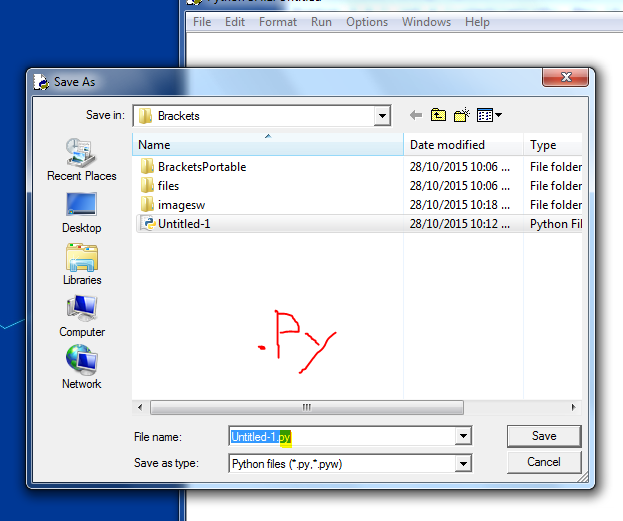
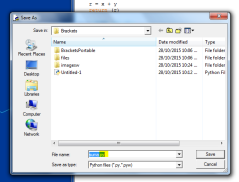
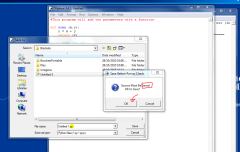
Now that you know how to create a new file, once you have your code written be sure to save it. It will be saved with a ".py" termination.
To open/edit a file:
Once you have your file (you can even create it or download it) you will sometimes want to edit it, to write some extra code, finish your work or even correct somehing that was wrong. To do this first you have to localize your file:
On the example I want to open the WSQ07.py file that I have in a folder in my desktop.
I recommend you to memorize the files locations because if you want to execute it through the command line you will have to write the hole file adress. If you are bad at memorizing you should organize your files in jerarchised folders, this helps you to localize the file without not even knowing the exact location. Example: World/Continent/Country/State/City
This extructure will help you to go from something general to something specific without memorizing the exact adress. By the way, try not to use complicated names like "Masd123". Use something easy to remember that follows the logic of the jerarchy.
Continuing with the tutorial. The next step is to right-click on the file and select "Edit with IDLE". If you just open the file by double-clicking on it it will execute in the console or of it´s not finished it will not open anything. You should avoid opening .py files by double-clicking because the console that it launches will instantly run your code and when it ends it will close, you will not be able to see the prints or the results.
This will open the script so that you can continue writing on it.
To execute a file:
There are two ways of executing a file, through the command line and though the IDLE.
In my opinion opening it with the IDLE it´s a lot easier and you save a lot of time but it´s necessary that you know how to execute it with the command line because some text editors don´t have this option.
To execute the file with the command line(windows):
The first thing that you need to do is to open the CMD, look for it in the search bar and open it.
It will look like this:
Now you have to write the folder directory of your file, I highly recommend you to save the file on c:/ so that you don´t have to write the location every time you run the program.
To find the root directory open documents go to C:/ users / (name of the user), there is where the CMD will start. Here is an example:
Now, once that you have localized your file location and you are ready to put it down on the CMD be sure to write "python" before the file separated with a space. This tells the CMD to excute the file with python (if you installed it correctly of course), the CMD will imitate the python console and execute the file you selected with it.
Always remember to write the file termination, in this case is ".py".
To execute the file with the IDLE:
This is going to be really simple. First you need to open the file with the edit option that I teached you.
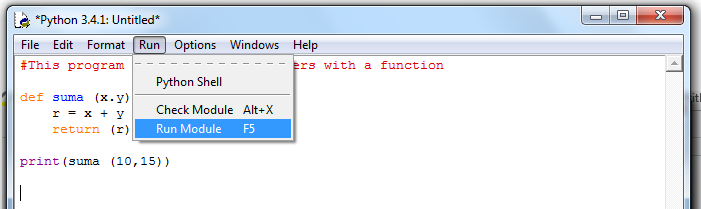
This is my WSQ07 and if want to run it while i´m using the IDLE I just have to pres F5... yes, just that. The console will open the file automatically.
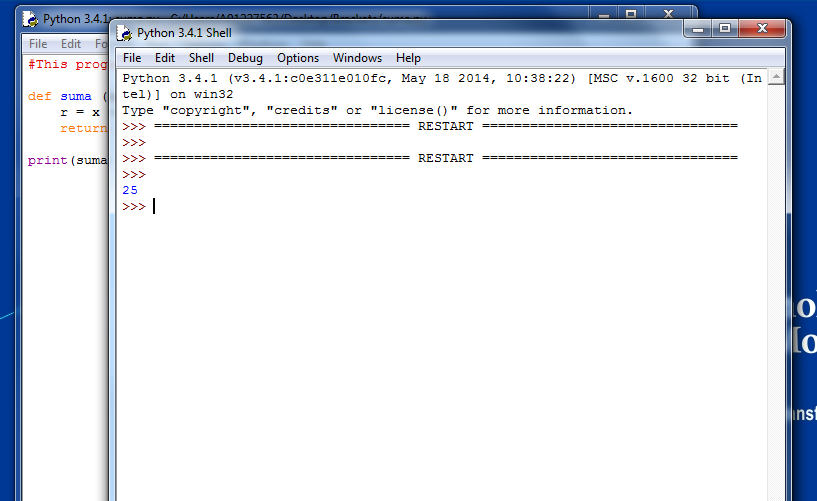
As you can see it atomatically star asking me for the first number, that means that the program is running.
Just as simple as that you can execute the file and test it without pressing more that 3 buttons, have in mind that in some computers you need to press Fn+F5.
]]>
To create a new file:
To create a file in python first you have to open the Python IDLE, to do this you have to go to the search bar and look for “python”, there you willl see the IDLE exe.
The IDLE is like a comand line, you can´t write code on in, its just for testing. What you need to do to open a new blank space to write python code is to press “Ctrl+N or to go to the corner and open a new file.
Now that you know how to create a new file, once you have your code written be sure to save it. It will be saved with a “.py” termination.
To open/edit a file:
Once you have your file (you can even create it or download it) you will sometimes want to edit it, to write some extra code, finish your work or even correct somehing that was wrong. To do this first you have to localize your file:
On the example I want to open the WSQ07.py file that I have in a folder in my desktop.
I recommend you to memorize the files locations because if you want to execute it through the command line you will have to write the hole file adress. If you are bad at memorizing you should organize your files in jerarchised folders, this helps you to localize the file without not even knowing the exact location. Example: World/Continent/Country/State/City
This extructure will help you to go from something general to something specific without memorizing the exact adress. By the way, try not to use complicated names like “Masd123”. Use something easy to remember that follows the logic of the jerarchy.
Continuing with the tutorial. The next step is to right-click on the file and select “Edit with IDLE”. If you just open the file by double-clicking on it it will execute in the console or of it´s not finished it will not open anything. You should avoid opening .py files by double-clicking because the console that it launches will instantly run your code and when it ends it will close, you will not be able to see the prints or the results.
This will open the script so that you can continue writing on it.
To execute a file:
There are two ways of executing a file, through the command line and though the IDLE.
In my opinion opening it with the IDLE it´s a lot easier and you save a lot of time but it´s necessary that you know how to execute it with the command line because some text editors don´t have this option.
To execute the file with the command line(windows):
The first thing that you need to do is to open the CMD, look for it in the search bar and open it.
It will look like this:
Now you have to write the folder directory of your file, I highly recommend you to save the file on c:/ so that you don´t have to write the location every time you run the program.
To find the root directory open documents go to C:/ users / (name of the user), there is where the CMD will start. Here is an example:
Now, once that you have localized your file location and you are ready to put it down on the CMD be sure to write “python” before the file separated with a space. This tells the CMD to excute the file with python (if you installed it correctly of course), the CMD will imitate the python console and execute the file you selected with it.
Always remember to write the file termination, in this case is “.py”.
To execute the file with the IDLE:
This is going to be really simple. First you need to open the file with the edit option that I teached you.
This is my WSQ07 and if want to run it while i´m using the IDLE I just have to pres F5… yes, just that. The console will open the file automatically.
As you can see it atomatically star asking me for the first number, that means that the program is running.
Just as simple as that you can execute the file and test it without pressing more that 3 buttons, have in mind that in some computers you need to press Fn+F5.
]]>


 ]]>
]]>




 (The credit of the background image goes to https://flic.kr/p/9buVdv)

